A natural touch surface
Point with one finger, tap to click, and scroll or right-click with two fingers.
Available on the App Store
Move the pointer, click, scroll, and use familiar Mac gestures from the screen in your hand. Add media controls, app launchers, and shortcuts around the trackpad when you want them.
Requires iOS or iPadOS 26 or later and macOS 26 or later. Sign in to the same iCloud account on both devices.
Made for the way you work
Point with one finger, tap to click, and scroll or right-click with two fingers.
Duo chooses among available USB, Wi-Fi, and Bluetooth connections. It even works when your Mac uses your iPhone's Personal Hotspot for cellular internet.
Tune pointer speed and scrolling, then choose a finish that feels at home on your device.
Place media controls, Mac app launchers, and shortcuts where they fit your workflow.
iPhone Duo
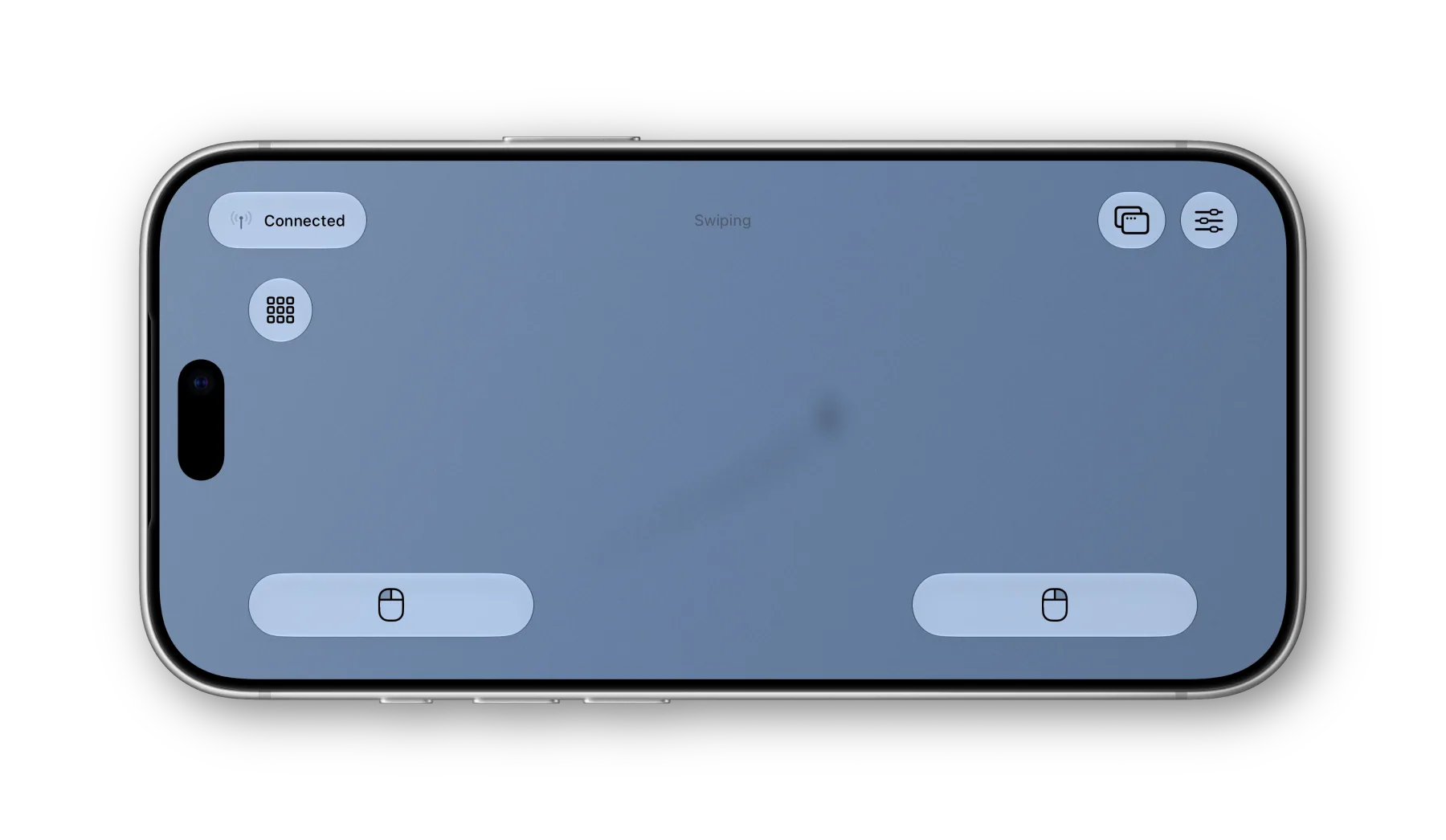
Point, scroll, and drag across Duo Trackpad's landscape touch surface on iPhone Duo.
Gestures
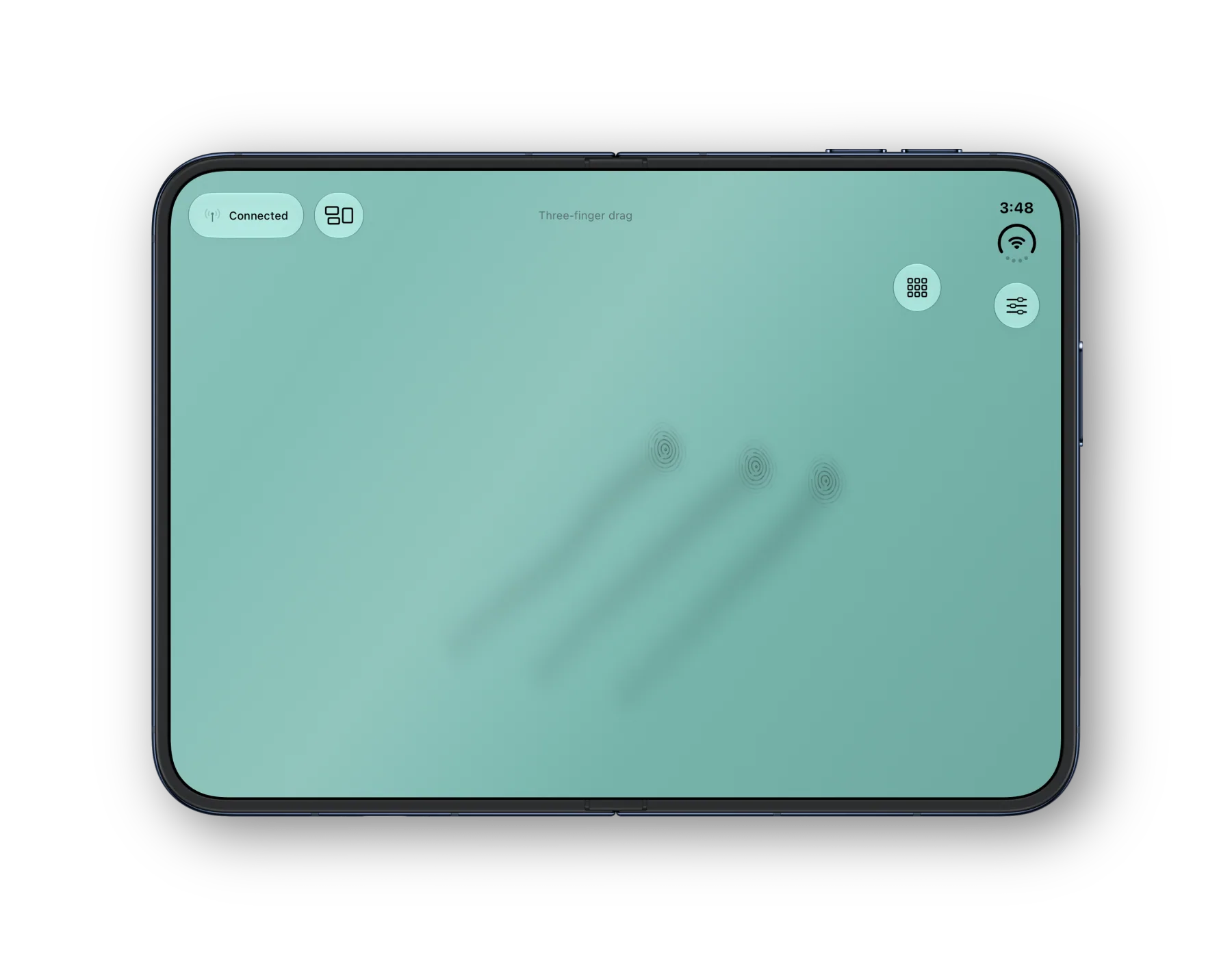
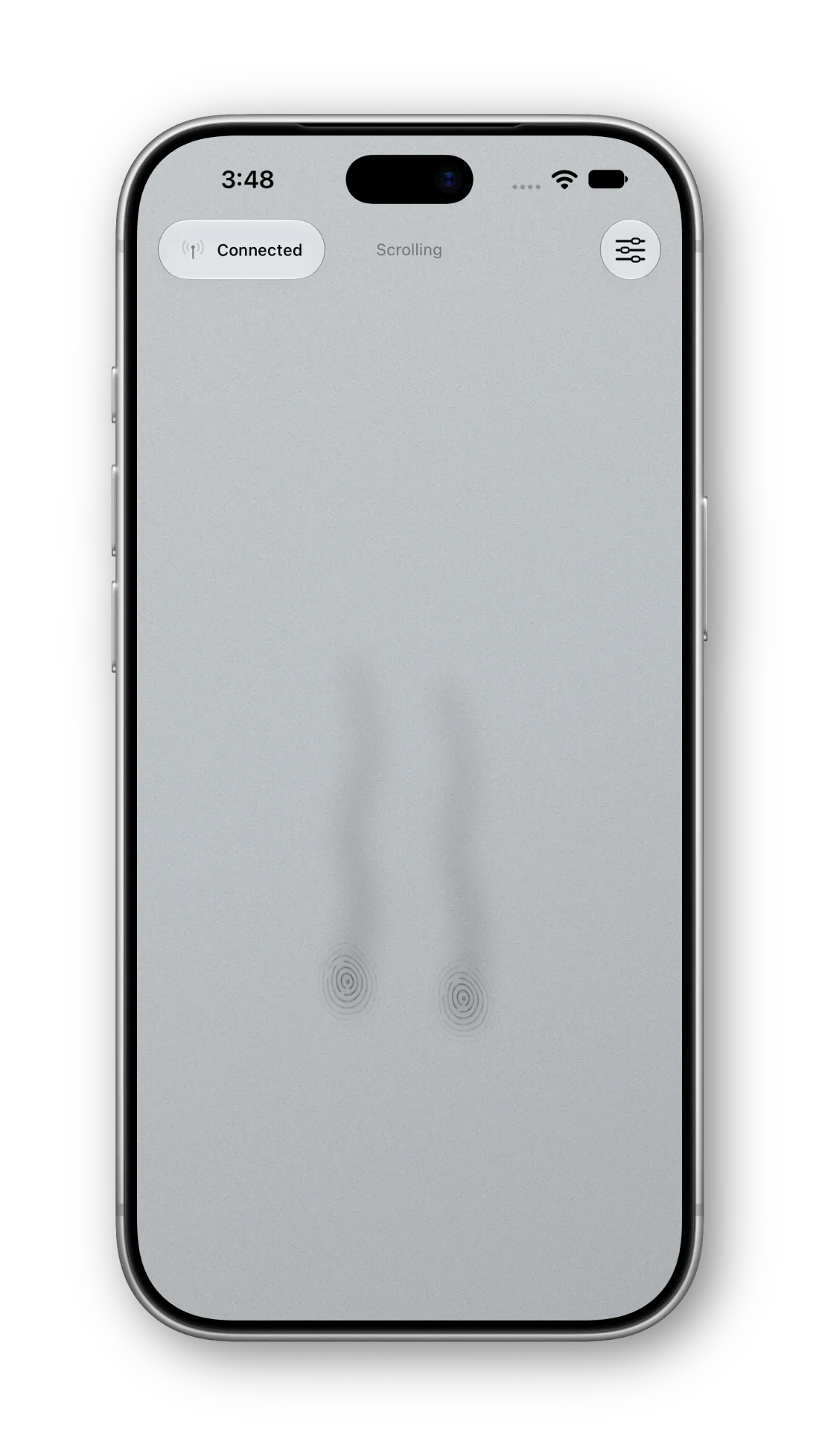
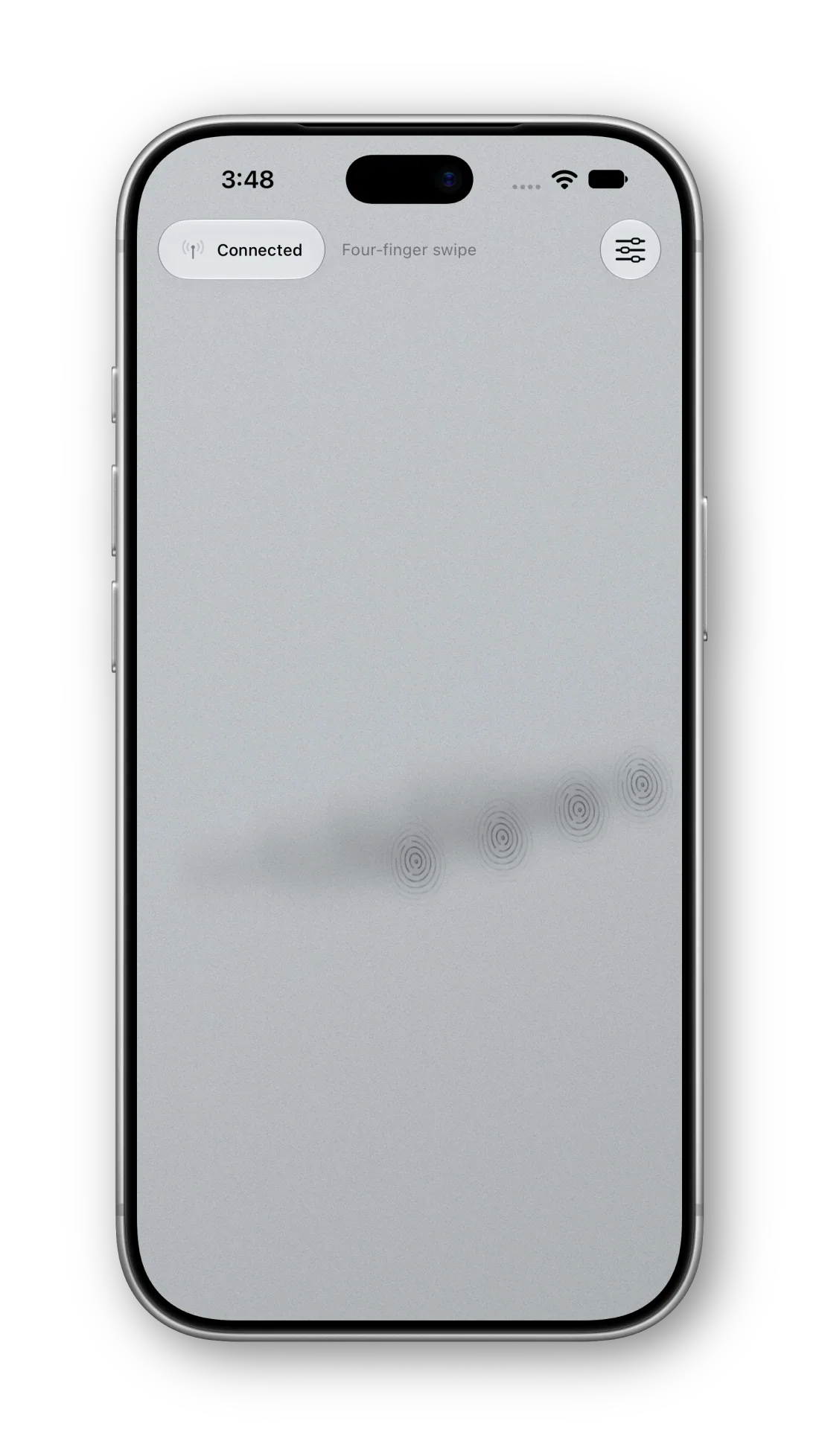
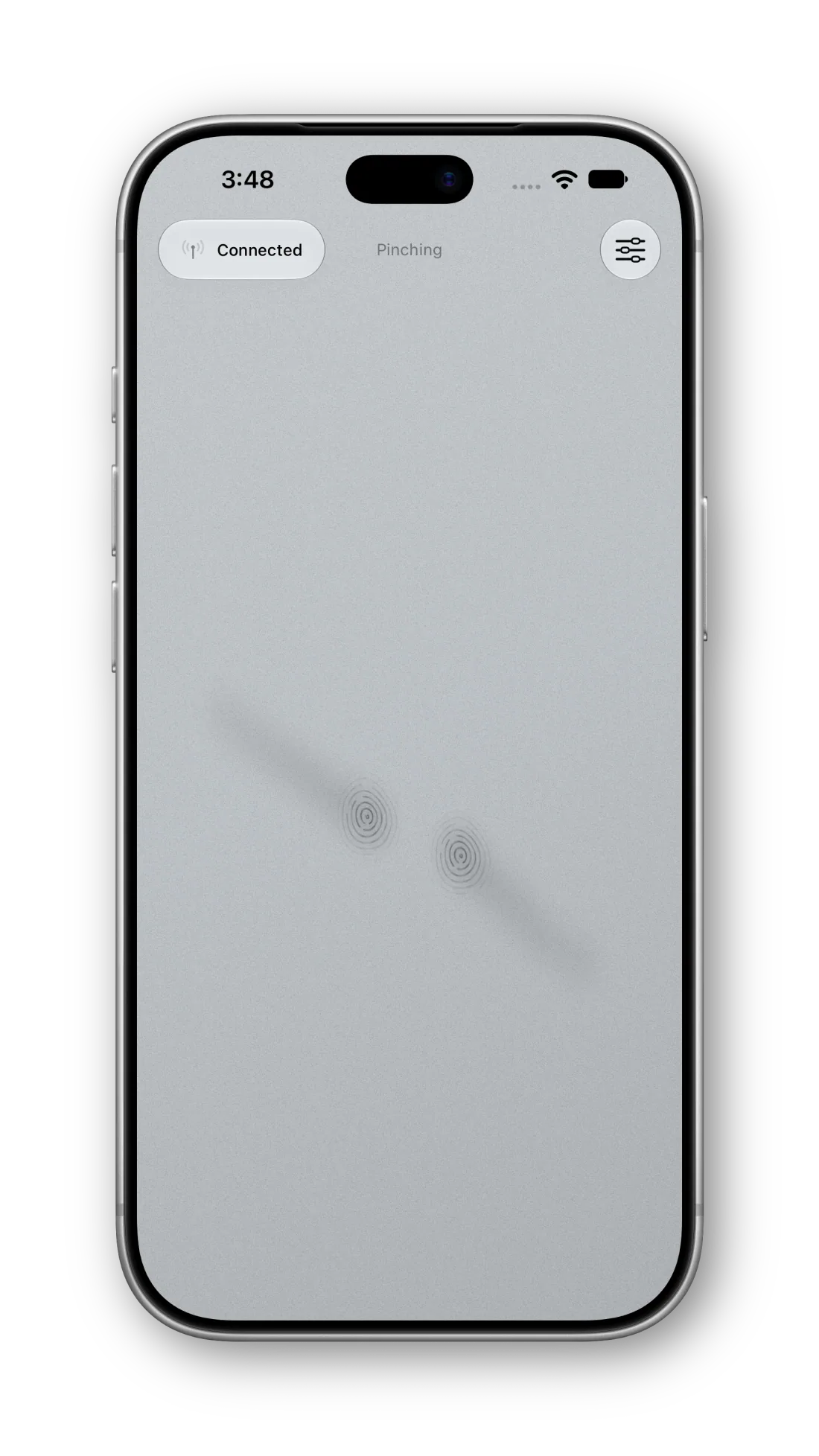
Tap to click, two-finger scroll, and use three-finger drag. Swipe with four fingers for Mission Control, app windows, and Spaces. Pinch with two fingers to zoom in apps that support trackpad magnification.
Basic pointer control, clicking, and scrolling are free. Premium adds gestures such as three-finger drag, four-finger swipes, and pinch to zoom.
Control panel
Keep the trackpad open for gestures and put your most-used Mac controls within reach. Add buttons to a toolbar or the touch surface, then save a named layout for each workflow with Premium.
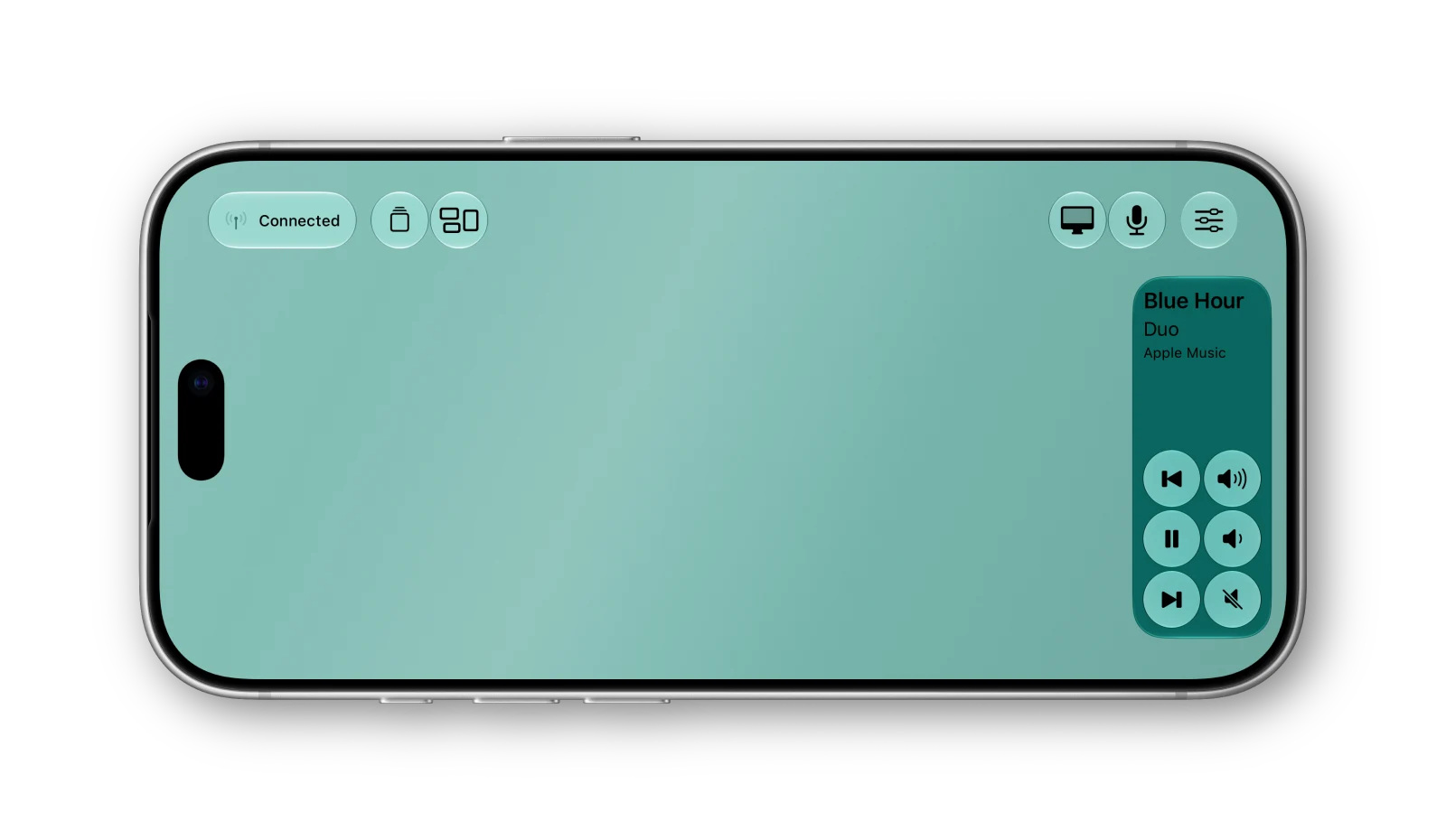
Keep playback and volume along the edge, with room to move and scroll.
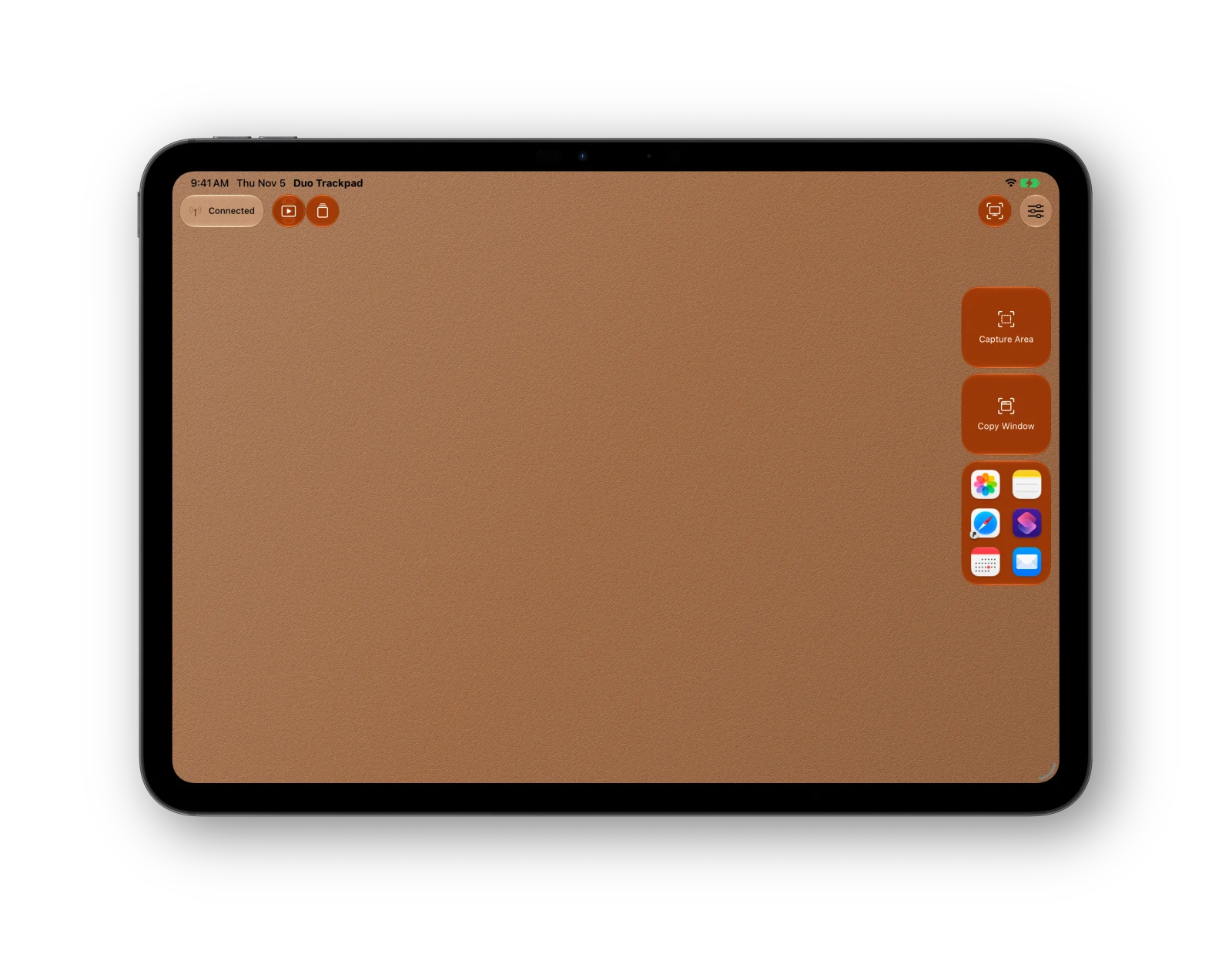
Capture a window or area and launch Mac apps from one side of the trackpad.
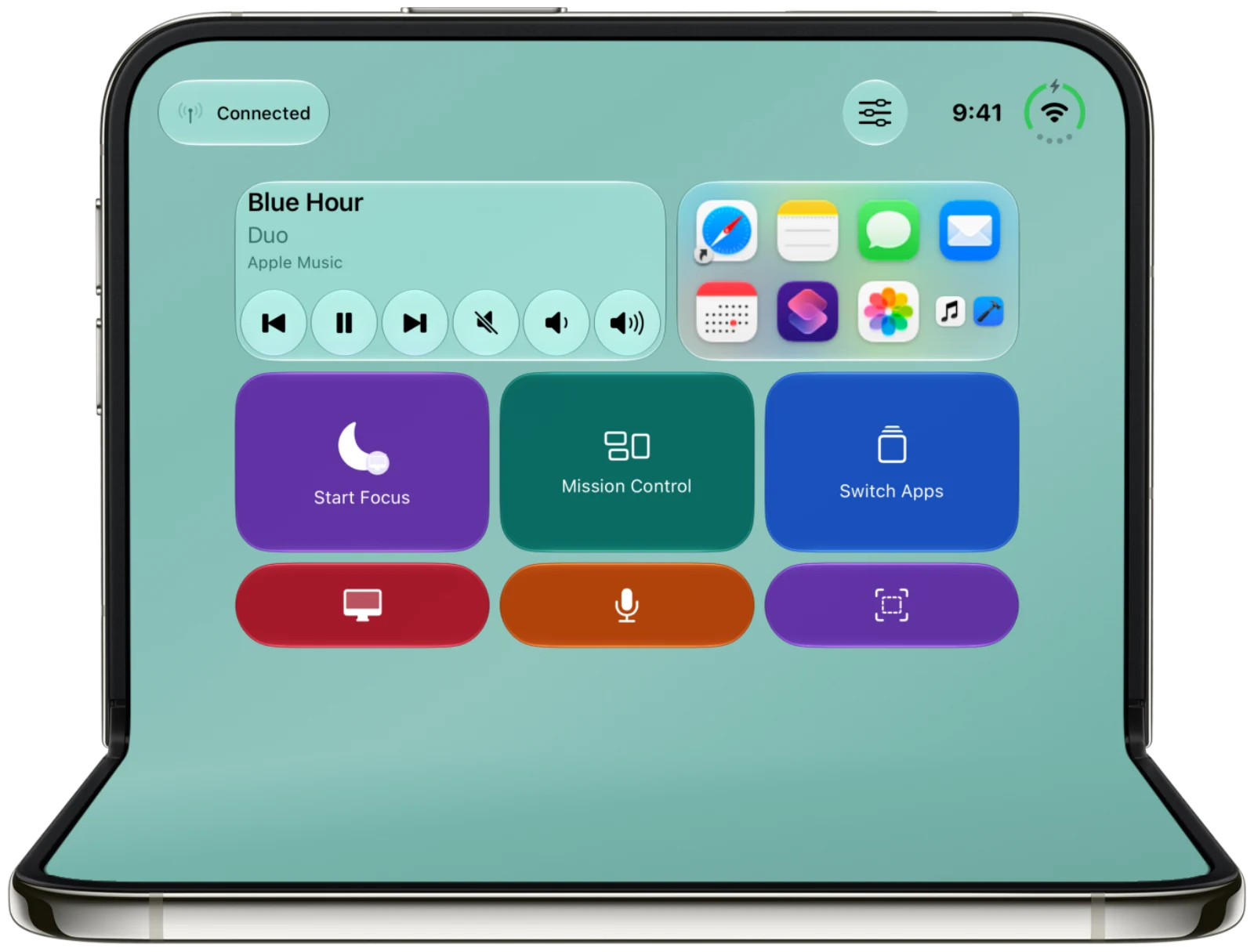
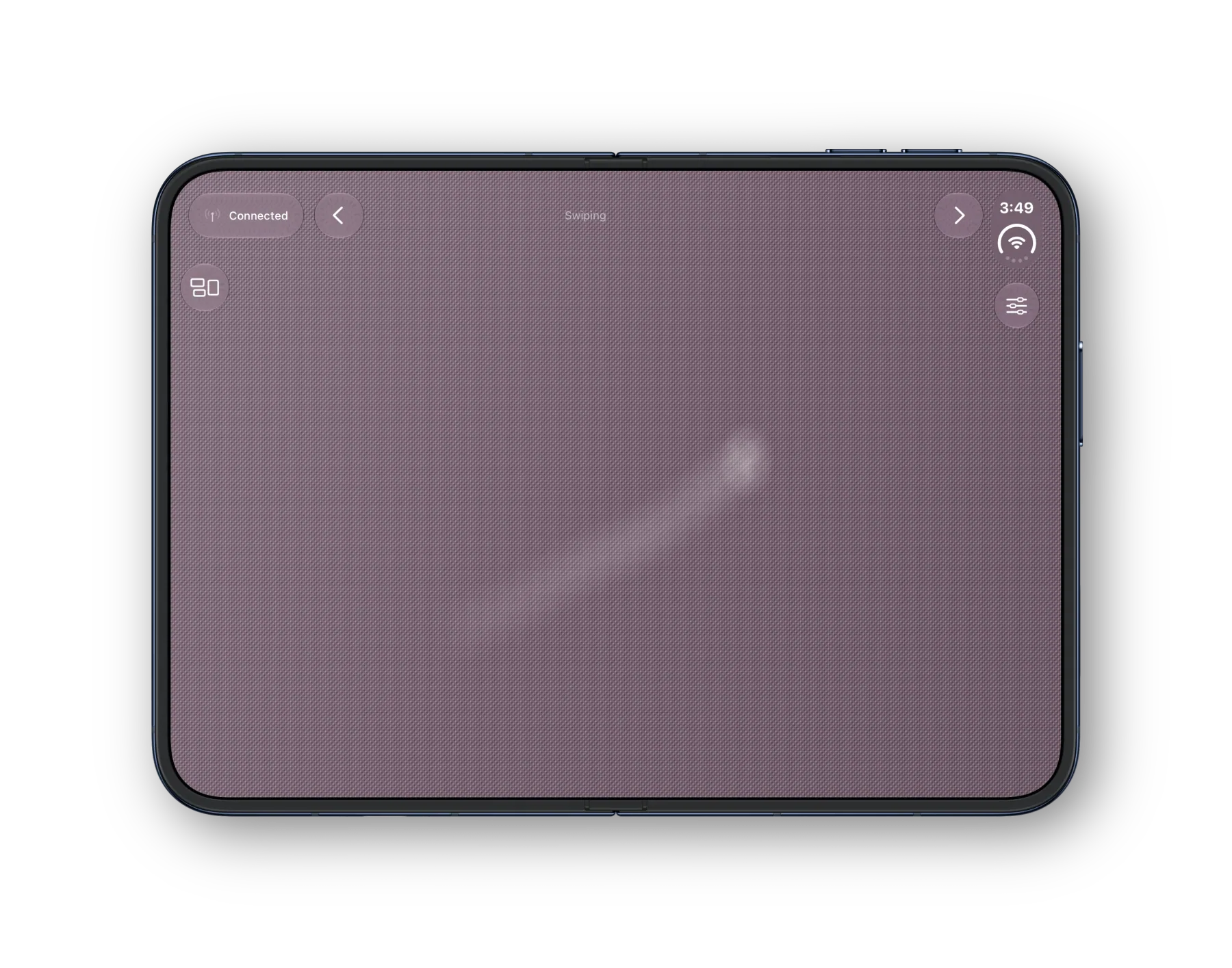
Fold into laptop mode for a control panel up top and a dedicated trackpad below.
Personalization
Choose Matte Aluminum, Satin Plastic, Leather, Woven Fabric, or Silicone. Pick a finish or custom color, then tune speed, adaptive speed, natural scrolling, and touch impressions.
Add dedicated left- and right-click buttons with Premium. Use a different saved layout for a device orientation or iPhone Duo pose with Automatic Layouts.
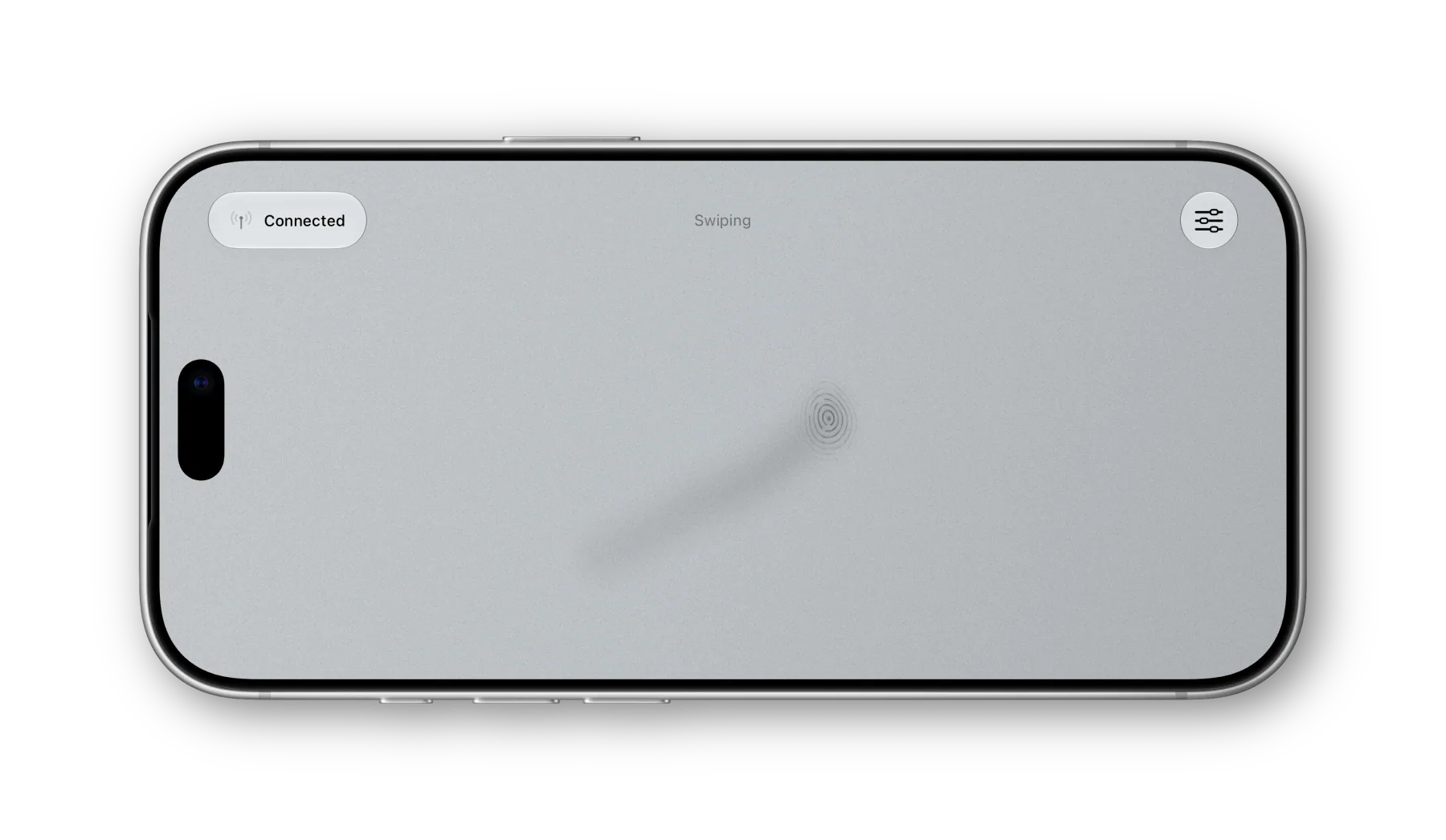 Matte Aluminum
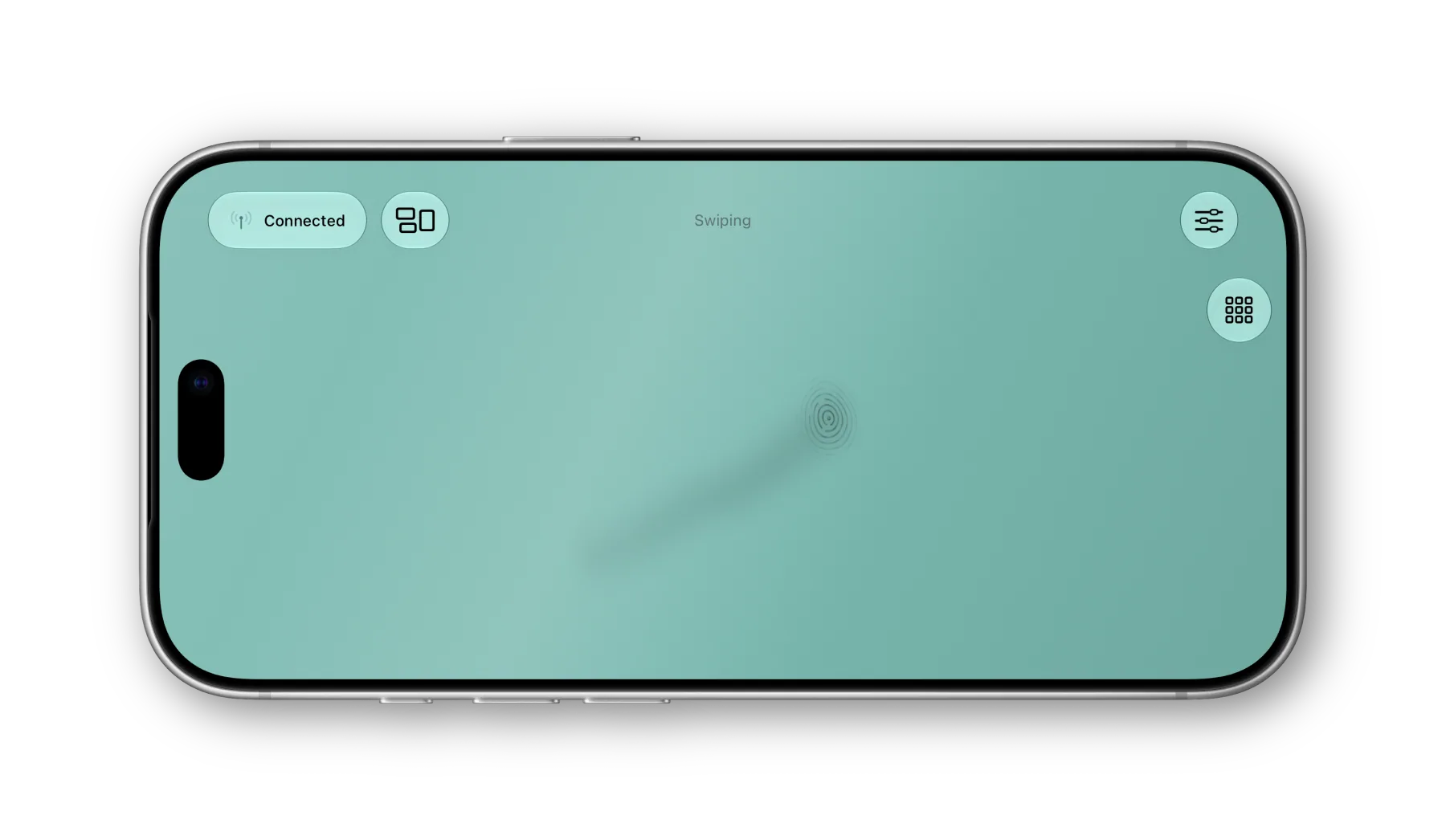 Satin Plastic
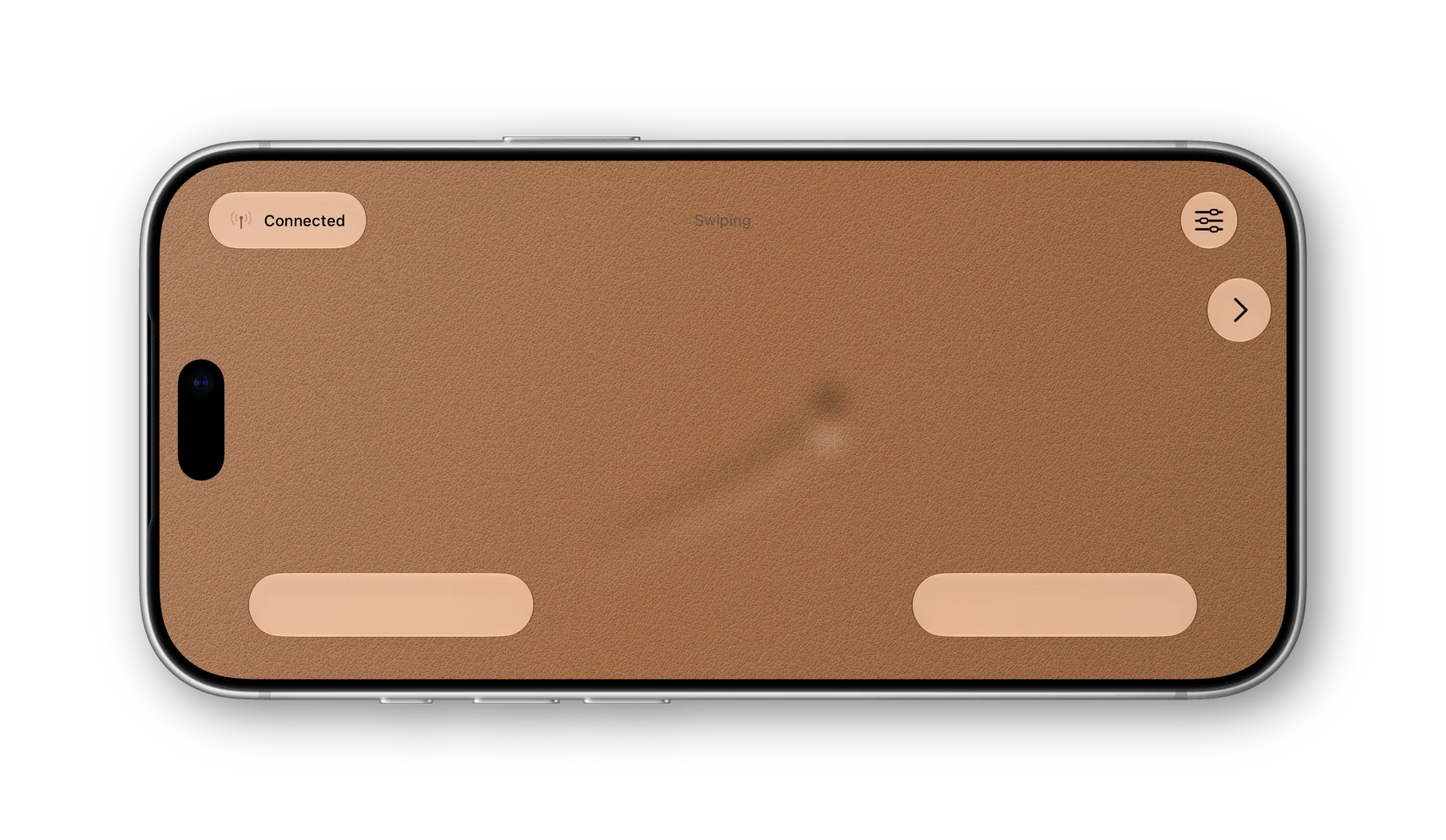 Leather
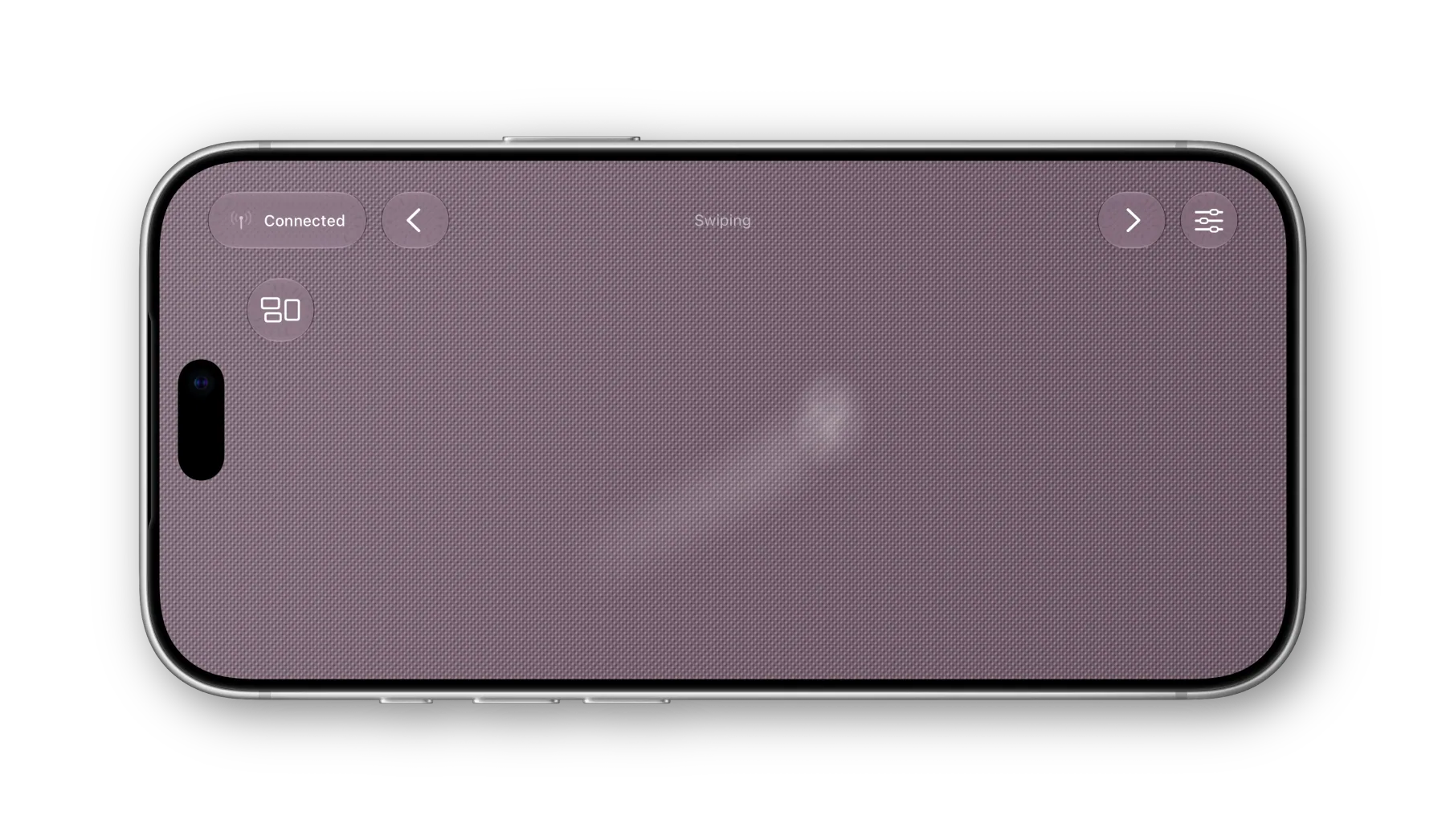 Woven Fabric
 Silicone
How it works
01
Download Duo Trackpad from the App Store on your iPhone or iPad and on your Mac. Open both apps and sign in to the same personal iCloud account on both devices.
02
Approve the Bluetooth or Local Network prompts you plan to use. On your Mac, grant Duo Trackpad pointer-control access in System Settings and restart the receiver if prompted.
03
Keep the Mac receiver running. Duo finds the Mac, selects an available connection, and turns the device screen into your touch surface.
A cable can be used when your devices expose a USB network connection. Available paths depend on device and system setup.
Connection
The connection indicator shows the active path and quality. Open its details to see recent round-trip timing and reconnect when needed.
Yes. Install Duo Trackpad on your Mac as well as your iPhone or iPad. The Mac companion runs in the menu bar and receives pointer and gesture input. Keep it running while you use the touch surface on your iPhone or iPad.
You need an iPhone running iOS 26 or later, or an iPad running iPadOS 26 or later, together with a Mac running macOS 26 or later. Sign in to the same personal iCloud account on both devices.
Yes. Sign in to the same personal iCloud account on both devices so Duo can securely connect them. Pointer input then travels over the selected connection between your devices.
Duo Trackpad is ready when your iPhone or iPad is.

Requires iOS or iPadOS 26 or later and macOS 26 or later.